

Showing posts with label 3D Animation. Show all posts
Showing posts with label 3D Animation. Show all posts
Sunday, October 19, 2014
Tuesday, February 11, 2014
Lawatan dari UiTM Kelantan
Pada 29 Januari 2014, Redang Digital telah menerima kunjungan daripada para penuntut dan pensyarah UiTM Kelantan. Seramai 27 orang pelajar bersama pensyarah telah mengikuti lawatan tersebut.


Pelajar bergambar kenangan di dalam studio Redang Digital
Melihat cara produksi bekerja
Bersemangat melihat skrip dihasilkan
Melihat sendiri cara membuat model animasi 3D
Berpeluang bertanya soalan berkaitan animasi 3D
Melihat cara storyboard dihasilkan
Dapat melihat semua bahagian yang ada dalam proses animasi 3D
Diharap semua pelajar dapat menimba sedikit sebanyak ilmu serta pengetahuan yang telah dikongsi oleh kakitangan Redang Digital berkaitan animasi 3D. Semoga pengalaman berkunjung ke Redang Digital akan kekal dalam ingatan pelajar. Kami mendoakan semua pelajar UiTM Kelantan berjaya dalam pelajaran serta kerjaya masing-masing.
Daripada Abdullah bin Amr. r.a, Nabi SAW bersabda : "Sahabat yang terbaik disisi Allah adalah sahabat yang paling banyak berbuat baik kepada sahabatnya."
( Riwayat Ahmad dan Tirmizi )

Monday, November 4, 2013
Lawatan Dari Sekolah Menengah Agama Atas Zainal Abidin (SMAAZA), Kuala Terengganu
Terlebih dahulu Redang Digital ingin mengucapkan ribuan terima kasih kepada semua pelajar dan guru-guru dari Sekolah Menengah Agama Atas Zainal Abidin (SMAAZA), Kuala Terengganu di atas kesudian mengadakan lawatan ke studio kami. Program lawatan ini telah diadakan pada 30 Oktober 2013 yang lalu.
Dalam lawatan tersebut, para pelajar telah diberi penerangan mengenai proses penerbitan animasi 3D dari pelbagai aspek seperti membina model 3D, penyediaan storyboard, proses 'video editing' dan banyak lagi penerangan-penerangan lain yang telah diberikan kepada para pelajar.

Asyik melihat video yang ditunjukan oleh Che Ku Afandi

Para pelajar melihat proses penerbitan animasi 3D

Bertanya cara-cara membuat storyboard kepada Che Ku Nasaruddin

Zakaria (duduk) sedang menerangkan cara menyediakan model 3D sambil diperhatikan oleh En Ahmad Azrin
Diharap pelajar-pelajar dan guru-guru dari Sekolah Menengah Agama Atas Zainal Abidin, Kuala Terengganu dapat menimba pengalaman baru serta menambah sedikit sebanyak pengetahuan berkaitan animasi 3D.
Terima kasih diucapkan kepada guru-guru dan para pelajar yang terlibat dalam program lawatan kali ini. Semoga apa yang dapat dipelajari di sini dapat dimanfaatkan sekaligus dapat menambahkan minat para pelajar untuk menceburkan diri dalam bidang animasi 3D.
Terima kasih diucapkan kepada guru-guru dan para pelajar yang terlibat dalam program lawatan kali ini. Semoga apa yang dapat dipelajari di sini dapat dimanfaatkan sekaligus dapat menambahkan minat para pelajar untuk menceburkan diri dalam bidang animasi 3D.
Tuesday, June 21, 2011
Seminar Masterclass Bersama Raman Hui
Pada 18 Jun 2011 (Sabtu), pihak syarikat telah menghantar seramai 4 orang kakitangan yang diketuai oleh Zahuri Harun (Creative Director), Engku Faizal Fitri Che Engku Ngah (Animation Director), Muhammad Hadi Mohd Ali (Head of Rigging Department) dan W. Muhammad Khaidir W. Hashim (Animator) ke 'Seminar Masterclass Bersama Raman Hui' bermula pada jam 8.00 pagi hingga 6.00 petang, bertempat di Panggung Eksperimen ASWARA.
Ianya merupakan Latihan Modal Insan bagi memfokuskan kepada Industri Animasi dan Kesan Khas anjuran Akademi Seni Budaya Dan Warisan Kebangsaan (ASWARA), Kementerian Penerangan Komunikasi dan Kebudayaan. Raman Hui merupakan satu nama besar dalam penerbitan filem-filem Animasi di arena antarabangsa di bawah terbitan Dream Works SKG seperti SHREK dan KUNGFU PANDA.
Ianya merupakan Latihan Modal Insan bagi memfokuskan kepada Industri Animasi dan Kesan Khas anjuran Akademi Seni Budaya Dan Warisan Kebangsaan (ASWARA), Kementerian Penerangan Komunikasi dan Kebudayaan. Raman Hui merupakan satu nama besar dalam penerbitan filem-filem Animasi di arena antarabangsa di bawah terbitan Dream Works SKG seperti SHREK dan KUNGFU PANDA.


Seminar Masterclass ini terbahagi kepada 2 sesi pembentangan iaitu sesi pagi dan petang. Sesi pagi - Pembentangan pertama (En. Muhd Usamah Zaid Yasin : Chief Animator of Les Copaque Sdn Bhd) selama 1 jam. Pembentang kedua (En. Jordan Sulaiman : Creative Director / Visual Efects Supervisor of Studio Voxel) selama 1 jam. Kemudian diikuti dengan sesi soal jawab selama 30 minit. Manakala pada sesi petang pula bersama pembentang Raman Hui (Animation Director / Supervising Animator / Lead Character Designer of Dream Works Studio / PDI).
Objektif seminar ini dianjurkan adalah untuk berkongsi model pekerjaan dan konsep tentang syarikat animasi yang terkenal di rantau Asia terutamanya di dalam pasaran yang berpotensi dan keperluan pengisian. Selain itu, ia juga untuk berkongsi pembikinan di balik tabir bagi pengisian kreatif yang bertaraf dunia untuk persiapan ke arah melahirkan bakat yang sedia di terima industri masa kini. Seminar ini juga diadakan untuk mendapat nasihat untuk persediaan kerajaan Malaysia didalam pembangunan industri kreatif bagi menjana ekonomi berpendapatan tinggi.
Sunday, April 24, 2011
Rakaman Suara Watak Bagi Siri Animasi Chiee: Pengembaraan Si Genius Musim 2
Pihak produksi RDSB telah memulakan sesi pertama rakaman suara bagi watak-watak di dalam Siri Animasi Chiee:Pengembaraan Si Genius. Sebanyak empat episod telah berjaya dirakam dengan jayanya.
Antara watak yang kami telah rakam iaitu watak Aman yang dilakon suara oleh Muhammad Naim Daniel Baharin, watak Amin yang dilakon suara oleh Alif Ikqmal Khairuddin,watak Zali dilakon suara oleh Muhammad Adi Mifzal manakala watak Mei Ling yang dilakon suara oleh Nor Meirysha Nurol Ashikin.
Antara watak yang kami telah rakam iaitu watak Aman yang dilakon suara oleh Muhammad Naim Daniel Baharin, watak Amin yang dilakon suara oleh Alif Ikqmal Khairuddin,watak Zali dilakon suara oleh Muhammad Adi Mifzal manakala watak Mei Ling yang dilakon suara oleh Nor Meirysha Nurol Ashikin.


Thursday, February 24, 2011
Lightwave 3D Tutorial (Modeling) : Create 3D Guitar
Make a Guitar
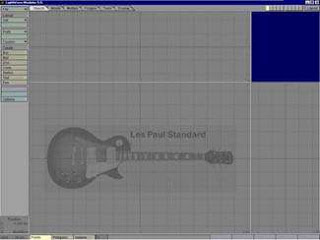
1. First off, it's useful to have a picture to base yourself. So got your picture and set to go.
In lightwave, make this picture as your backdrop on the face view.
This will be a great guide for your work, without it everything would be guesses and it would be far from exact.
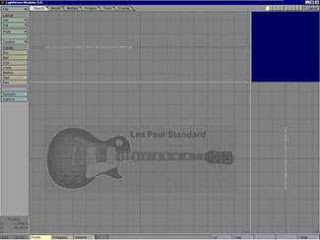
2. Now, start with the guitar's body.
Start off by laying points (shift +) around the shape of the body.
Once your done press ctrl + p to make a spline.
You can then move/add/remove the points until you are satisfied with how they are place, then press ctrl+d to freeze that spline.
Name that surface "Guitar Body - Front" .
Pick a color and set some specularity.
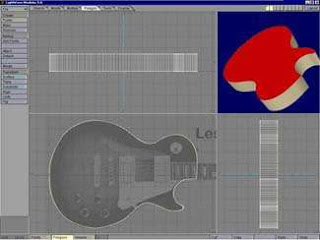
3. Now extrude it on the "z"-axis.
Whatever distance you see fit, depending on the guitar your modeling.
Select the polygons on the "x" axis, and name that surface to "Guitar body - side" .
Select the back poly, and name it "Guitar Body - Back".
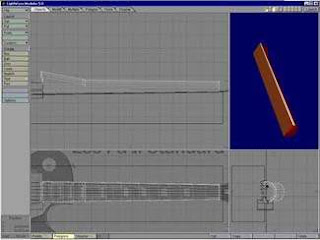
4. Now, enough on the body for now, we'll get back to that later.
Let's move on the neck of the guitar
Open a new layer, create an elongated elliptical disc on the "x" axis, and then on another layer, create a box that covers the front portion of it, and with the disc layer selected and the box layer in the background, perform a boolean substract (shift b).
Then performed a taper along the "y" axis because it is not a perfect rectangle.
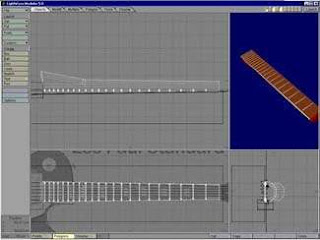
5. Name your disc surface "Neck - Back", and your box surface "Neck - Front".
For the frets, just made a disc which cut in half along the neck - front, and adjusted some points (with knife tool and drag tool) and copied it while placing it along the neck where they belong.
Finally performe the same taper as the neck, so the size adjusted with the neck.
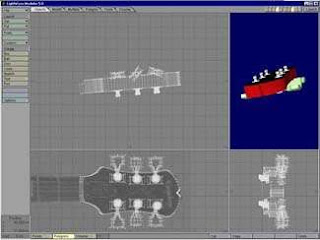
6. There, now you can adjust that booleaned disc so it fits how you would like it too.
Next we will move on to the head of the guitar, you could do this two ways depending on
the shape.
Chose to use the same technique as you did on the body, which is make a spline, freeze it (ctrl+d), and extrude it.
Make sure that it fits nicely into the neck of the guitar and there you go. for the little thingies on the head, made a spline and lathed it, made a disc on another layer and substracted it from the
lathed object.
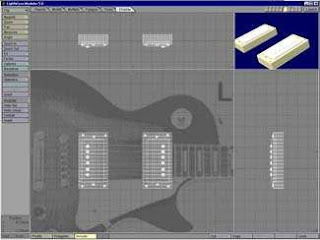
7. Enough of that, now for the details on the body.
Just made a box, metaform (shift+d) a couple of times, depending on how sharp the corners, then selected the inside polygons and place sized them up.
Once you satisfied with that smooth shifted them (shift + f) and pushed them back in
the "z" axis and put on metanurbs (tab).
Then renamed it to "Chrome parts" because its a nice and shiny pickup and smooth shifted again and this time moved it the other way in the "z" axis.
For the screws,
its just a flattened ball with a rectangle booleaned out of them.
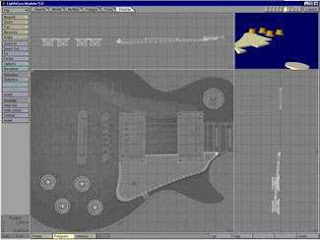
8. Now for the pick guard, again went with the spline / freeze / extrude technique.
After layed out the points, ctrl+p to make the spline, adjust the points, ctrl+d to freeze,
ctrl+e to extrude on "z" axis.
Then just moved it around, rotated it, moved some poly's until it fit nicely into guitar.
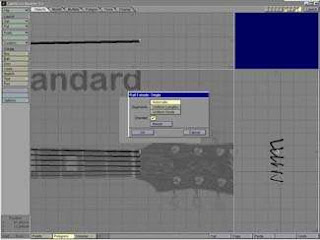
9. For the strings, could of just made a disc and stretched it, knifed it, moved some polys etc. But the other way was to make a spline.
Following the path of the string, and then on another layer make a disc about the size of the string.
Now with the disc layer selected and the spline in the background layer, press ctrl+r and perform a rail extrude.
Default settings are good but make sure your disc is at the start of your spline or else
everything will screw up, the same rotation helps too.
Now repeat this process for the rest of your strings.
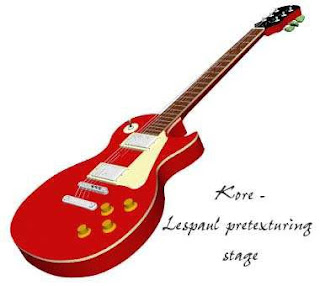
Hope you'll enjoy the tutorial
Credit To : NewTek Lightwave 3D
Wednesday, December 1, 2010
Lightwave 3D Tutorial : Membuat Model Asas Rumah
Anda dikehendaki membuka perisian Lightwave : Modeler

Langkah 1
1. Bina satu kotak
Create – Primitive - Box ( Shift + x )
2. Numberic – ( n )
Width – 8 m
Height – 2.5 m
Depth – 10 m

Langkah 2: Membuat Bumbung Rumah
3. Pilih polygon atas kotak
Multiply – Bevel ( b )
Top view – Tekan Ctrl + klik butang kiri tetikus dan seret ke Kanan
Back view – Klik butang kanan tetikus – klik butang kiri dan seret ke atas
Sunday, November 28, 2010
Siri Animasi TV Chiee: Pengembaraan Si Genius
Setiap yang bermula pasti akan berakhir. Begitulah yang berlaku pada Siri TV Animasi Chiee: Pengembaraan Si Genius musim pertama yang telah menamatkan tayangannya sebanyak 13 episod pada hari jumaat, 26 November 2010 yang lalu.
Di kesempatan ini pihak produksi Redang Digital Sdn. Bhd. ingin memohon seribu kemaafan jika berlaku sebarang kesilapan dan kesalahan sepanjang siri ini ditayangkan di saluran RTM TV2. Harapan kami semoga diberikan peluang untuk menyambung lagi siri TV ini untuk musim seterusnya pada masa akan datang.
Semoga semua penonton mendapat ilmu dan manfaat daripada siri TV ini. Dengan ini kepada semua pembaca blog yang dikasihi sekalian, nikmatilah gambar-gambar daripada Siri TV Animasi Chiee :Pengembaraan Si Genius.
Di kesempatan ini pihak produksi Redang Digital Sdn. Bhd. ingin memohon seribu kemaafan jika berlaku sebarang kesilapan dan kesalahan sepanjang siri ini ditayangkan di saluran RTM TV2. Harapan kami semoga diberikan peluang untuk menyambung lagi siri TV ini untuk musim seterusnya pada masa akan datang.
Semoga semua penonton mendapat ilmu dan manfaat daripada siri TV ini. Dengan ini kepada semua pembaca blog yang dikasihi sekalian, nikmatilah gambar-gambar daripada Siri TV Animasi Chiee :Pengembaraan Si Genius.


Sunday, November 21, 2010
Lightwave 3D Tutorial (Modeling Basics) : Create 3D Frame
Check out our latest free tutorial:
Thanks to Mr Taufik for the knowledge sharing...
Sunday, November 14, 2010
Create 3D Animation Logo
Creating a 3D Logo
Step 1: Load LightWave Modeler and set up your workspace the way you like it. I prefer
the Default setup.
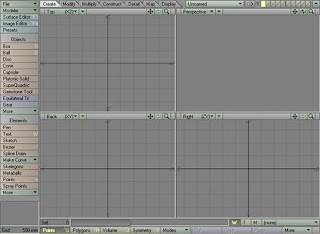
Step 2: To import the vector file bring up the EPSF Loader under File/Import in Modeler.
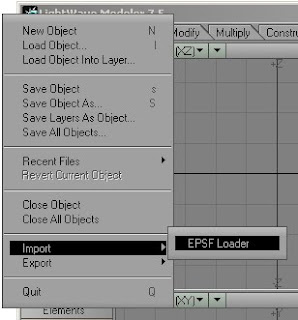
This brings up the EPSF Loader window:
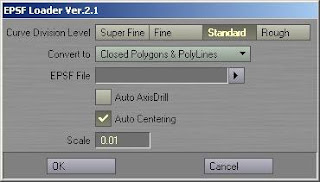
Curve Division Level determines how many vertices are applied to the curve of the geometry. For this example we will use the default setting "Standard".
Convert to allows you to choose between the type of geometry that you would like to convert the Vector art to.
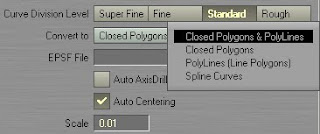
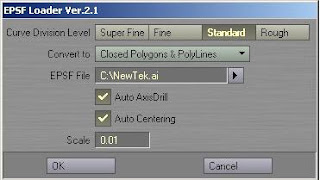
We will use the Default setting "Closed Polygons & PolyLines". EPSF File requestor. This is where you select the file to import. For this example we will use a familiar logo.
When Auto Axis Drill is selected, LightWave will automatically perform an operation to remove the holes in the geometry. An example of this would be the holes in the letter "B" or "O". For this example we will want this selected.
Auto Centering does just that. It automatically centers the object. We will leave this selected.
The Scale setting allows you toscale your object before it is created.We will use the Default setting "0.01".
With the settings from above, the EPSF Loader window looks like this:
Step 3: Click OK.
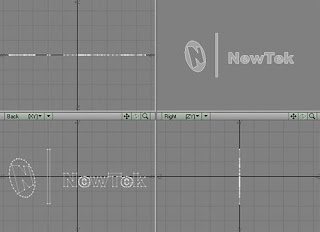
Step 4: Now that we have the Logo in LightWave, we can make it 3D. Select the Extrude
Tool, "Multiply/Extend : Extrude".
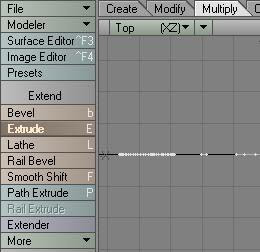
Step 5: With the Extrude tool selected Left Click and drag the cursor up in the Top view port.
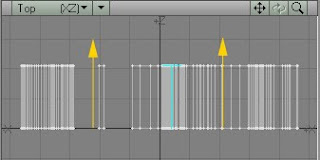
Use the blue "T" handle to adjust the depth of the extrusion.
Step 6: Press the "Enter" Key to apply the changes.
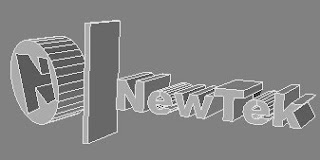
Done for Part 1
Part 2: Surfacing the Logo
Step 1: Load the Beveled Logo that you just created if it is not already loaded. Choose Surface (q), (Detail/Polygons: Surface).
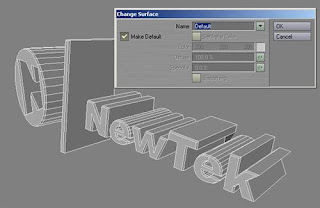
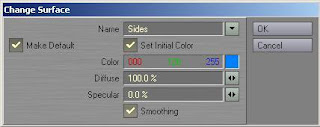
Step 2: Change the Name to "Sides", pick a Color using the color picker, and Select Smoothing. The Change SurfaceWindow should look like the image below.
Step 3: Click OK.
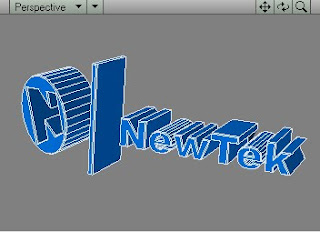
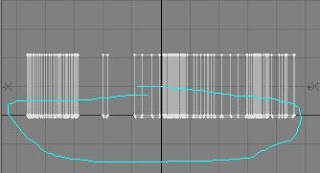
Step 4: Lasso select (Right Click and Drag) the Bevel and Front polygons on the entire 3D Logo.
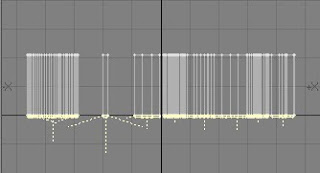
Step 5: Surface these Polygons with the following settings:
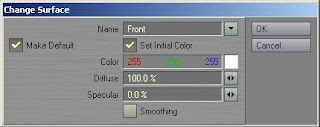
Step 6: With the polygons still selected, unselect the Front faces by clicking on them.
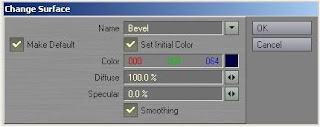
Click OK.
The logo should look something like this:

Save your work and Done For Part 2
Part 3: Animating the Logo
Step 1: Load the Surfaced Logo from the previous page into Layout. (Items/Add; Load Object)
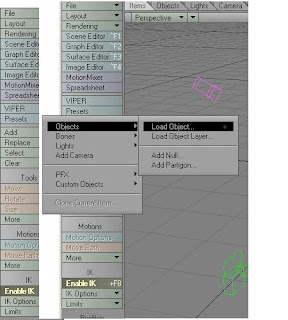
Your scene should look something like the image below:
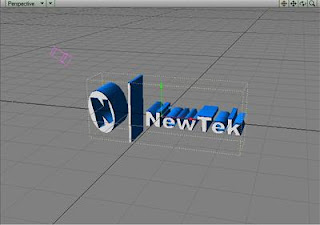
Step 2: We want our animation to last for 6 seconds, so we need to change the Last frame
on the Timeline. For NTSC animators that would be 180 frames, and for PAL animators,
that is 150 frames. (180 frames/30 frames a second = 6 seconds).

Step 3: Change theWorkspace viewport to Camera.
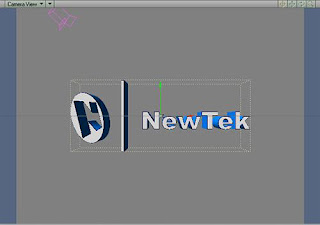
Step 4: Move the Frame Slider to frame 180.

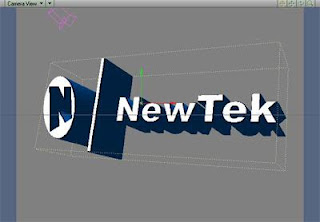
Step 5: With the Logo still selected Move (Items/Tools: Move) the Logo closer to the Camera and then select the Rotate (Items/Tools: Rotate) tool and Rotate it so that it has a dramatic look at the end of the animation. Here is what I came up with:
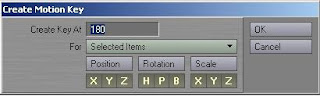
Step 6: Create a Key Frame (Enter key) or (Create Key located at the bottom of the screen). This tell LightWave that it needs to remember the Logo's location and orientation at frame 180.
Step 7: Go back to Frame "0" and move the Logo off screen in the upper-left hand corner.
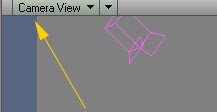
Step 8: Create a Key Frame.
Step 9: Use the play button to see an OpenGL preview of the animation you just created.
Step 10: Move the Frame slider to the mid-point (either 75 or 90 frames). Move and Rotate the to the center of the screen. I went with some wacky rotation on mine below. Create a Key Frame and Play an OpenGL preview of the animation.
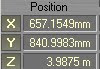
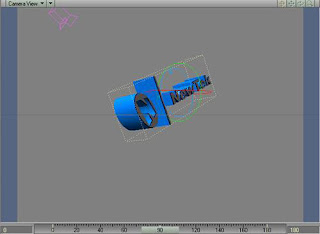
Step 15: Play of your animation and enjoy the results.
Subscribe to:
Posts (Atom)


